Aurora: Safety Interlock Bypass for large object Engraving and Door Protection Error Message
Preface: This article discusses how to bypass the door circuit on an Aurora machine in order to engrave objects larger than the work space

It is 100% your responsibility to operate the machine in a safe manner. Thunder Laser USA assumes no responsibility for any damage, harm, injury etc. that may result from the bypassing of the machine safety. You should wear the proper PPE like safety glasses, inform anyone in the immediate area and take all the proper precautions to protect yourself and others from injury. The exhaust will not be as effective either, take precautions to extract the fumes that are output from the laser. Bypassing the interlocks will make the machine a Class IV type, with direct exposure to a Class IV source possible.
Typical Error Message:
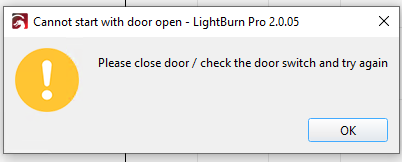
If your door is not closed and your IO settings are properly configured in an actively connected computer and you try to run a project, you will get this error message:
Bypass Options:
Two options exist to bypass the door safety circuit. You can perform the bypass in the software or you can bypass the hardware with magnets.
Software Bypass:
Depending on which version of Lightburn you have, the steps to get to the Ports and IO settings may be different as well as the general layout of the IO ports. You will need to determine which method works best and use the imagery provided to find the proper location in your software version. You can refer to Lightburn Software's KB for further details.
Under Device Settings (Which may be under the Laser Tools tab or in the Edit tab) or by clicking the wrench/screwdriver icon ( ):
):
We will be looking at the Door Protection entry (Your other settings will not have look like the rest of the settings on this tab)
Normal Operating | Bypassed |
Door Protect set to Port 15 with Low Level | Door Protect set to None |
Be sure to set back to the non-bypassed setting once you are done with your oversized project.
Hardware Bypass:
You will need 2 magnets or to remove the two sensor magnets from the lid. Place the magnets in the location shown:
Be sure to remove the magnets once you are done with your oversized project.